
The Interesting Fields are the relevant fields presented on the basis of the data distribution for the following types of queries:
Simple Search (except the Table and Time Functions commands)
Filtering Commands (except the latest command and the search command)
The Interesting Fields window appears at the bottom-left side of the search page after performing a search operation and displays the top 15 fields, sorted according to the occurrence of the fields in the search result.
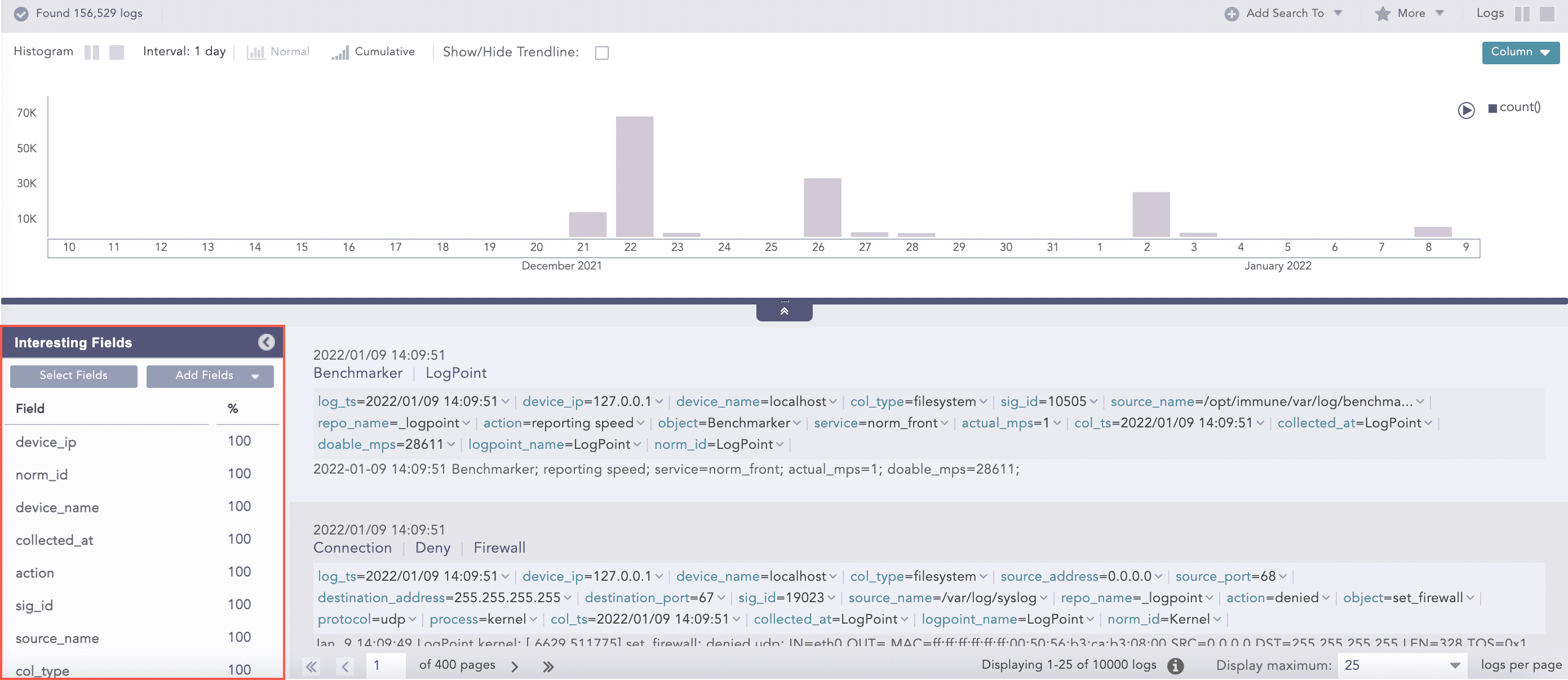
Interesting Fields
The parameters used to measure the data distribution are:
Percentage (%) - Displays the percentage of occurrences of a given field.
Count (# of values) - Displays the number of unique values for the given field.
Mean Deviation - Displays the value of the deviation from the average occurrence of the given fields.
Median Deviation - Displays the value of the deviation from the fields with the highest number of similar occurrences.
You can sort the Interesting Fields either by clicking on the field header or the parameter header.
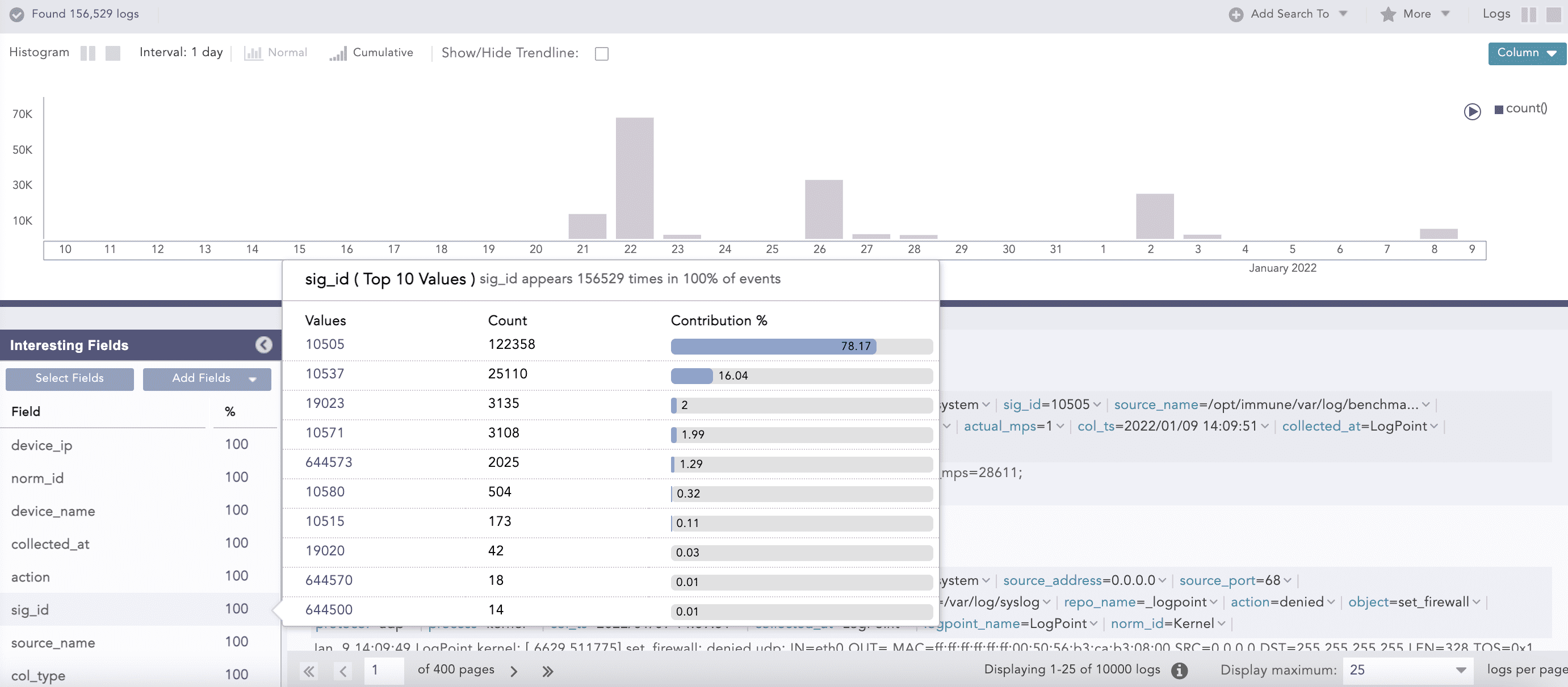
You can view the details of the Interesting Fields by clicking on the desired field from the list. A pop-up panel appears, containing the total number of occurrences of the selected field and its Top 10 values with their distinct counts and percentages.
You can add fields to the Interesting Fields window in the following ways:
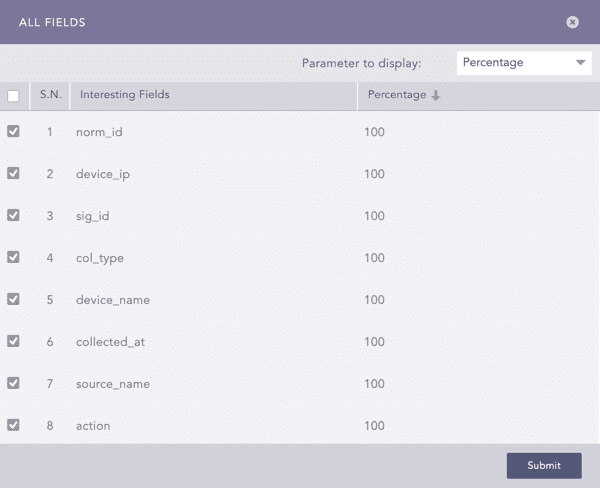
The All Fields panel pops up once you click Select Fields. The panel lists the top 100 fields from the search results. You can select the desired fields from the list and the relevant parameter from the Parameter to display drop-down menu to enlist them in the Interesting Fields window.
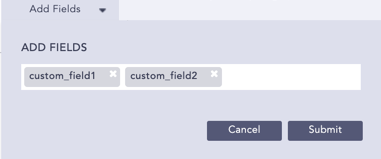
Click Add Fields to enter the names of the desired fields. These fields are added in the Interesting Fields window and in the All Fields panel regardless of their occurrence in the search result. You can view these fields in a different colored text in the Interesting Fields window.
Note
You can add a maximum of 20 fields in the Add Fields panel.
You can neither use special characters nor Unicode characters in the Add Fields panel.
You can select the Add this field to interesting fields option from the drop-down menu on the key-value pairs to add the required field in the Interesting Fields window. The fields added from here are appended in the Add Fields panel.
Note
The Percentage (%) parameter is displayed in the Interesting Fields window by default. If the percentage of a field is less than 0.005, it is displayed as 0.
The Interesting Fields feature is enabled by default. You can disable Interesting Fields by selecting the Disable Interesting Fields in Search Page option under My Preferences >> Search. You can also collapse or expand the Interesting Fields window by clicking the window header.
The Interesting Fields window is disabled if:
The Data Privacy Module is enabled in your system.
The queries Aggregators, Pattern Finding, Table, Time Functions, search, or latest are used.
The values of the parameters in the Interesting Fields window are approximated if:
The number of fields in the Interesting Fields window is more than 100.
The distinct count of the given field is more than 100.
The fields log_ts, col_ts, msg, logpoint_name, repo_name, and label are not supported in the Interesting Fields window.
The Loading Interesting Fields icon appears in the search result tool bar if the system takes time to load the values in the Interesting Fields window. The icon disappears once the values are completely loaded.
Warning
Logpoint does not compute the values of the Interesting Fields if you have hidden the Histogram and collapsed the Interesting Fields window.